SCGlobal Nanocruise
Technical Agenda
July 17 & 19, 2001
Objective:
July 17 - This nanocruise will 1) conduct audio leveling for the network,
2) run Distributed PowerPoint
July 19 - This nanocruise will 1) conduct audio leveling for the network
and for the telco, 2) if time allows will run DPPT
When:
July 17
8:00-10:00 AM Mountain
9:00-11:00 AM Central
1400-1600 UTC
July 19
8:00-10:00 AM Mountain
9:00-11:00 AM Central
1400-1600 UTC
Where:
Virtual Venue: Talus
Audio IP address, port, and ttl: 233.54.207.8/17008 ttl 127
Video IP address, port, and ttl: 233.54.207.9/17008 ttl 127
Distributed PowerPoint
Test slides may be downloaded from:
http://www.ahpcc.unm.edu/Computing/ag/nano7172001.ppt
DPPT server will be:
sagndisplay.ahpcc.unm.edu
Telco Bridge:
The Albuquerque High Performance Computing Center will serve as the telco
bridge.
Telco Conference Number:
Please connect to both RAT and telco for backup.
1-877-711-3694, code 200244
Agenda:
The agenda is short, but the troubleshooting process usually takes some
time. Please double check that your presets in Gentner are 1) Bridge,
2) Telco only, 3) Network only
| July 17 |
|
|
8:00-8:30
|
Role call network audio & mud
|
|
8:30-9:20
|
Test and debug dppt
|
| July 18 |
|
|
8:00-8:45
|
Role call network audio, telco audio, & mud
|
|
8:45-9:30
|
Test and debug dppt
|
Instructions:
- Activate AG nodes as normal
- Meet in Talus Virtual Venue as usual, but double check that your node’s
Gentner is using Preset 3 for network audio and Preset 2 for telco.
- Run through role call which includes: audio, video, and MUD acknowledgements
-Role call will be in alphabetical order
- Download test dppt slides from:
- On Display Station, edit config.bat to make server = sagndisplay.ahpcc.unm.edu
- On Display Station, open a command prompt
- In command prompt, change directory to dppt folder
- In command prompt, client <full path to dppt>/nano7172001.ppt
then WAIT FOR SERVER AND MASTER TO BE ACTIVATED. Announcement will be
in the MUD.
- Watch for slide changes – they will be announced in the MUD.
- Use MUD to report any failures to receive slide changes.
Nanocruise Test Analysis - 7/19/2001
|
| |
Joined nano |
Audio Leveling |
Microphone placement |
Rat options |
Echo Cancellation |
Gentner presets |
Telco |
End to end site ballanced |
Working Video |
Cameras |
8+ FPS |
Color |
Lighting |
MUD |
Naming conventions |
DPPT |
Config.bat - edited |
Switchovers - Master/Client |
Networking |
Bandwidth |
Multicast |
Packet Loss |
| Access DC |
|
|
|
|
|
|
|
|
|
|
|
|
|
|
|
|
|
|
|
|
|
|
| ARSC |
|
|
|
|
|
|
|
|
|
|
|
|
|
|
|
|
|
|
|
|
|
|
| ANL |
|
|
|
|
|
|
|
|
|
|
|
|
|
|
|
|
|
|
|
|
|
|
| Boeing |
|
|
|
|
|
|
|
|
|
|
|
|
|
|
|
|
|
|
|
|
|
|
| BU |
|
|
|
|
|
|
|
|
|
|
|
|
|
|
|
|
|
|
|
|
|
|
| China |
|
|
|
|
|
|
|
|
|
|
|
|
|
|
|
|
|
|
|
|
|
|
| Center for Higher Learning |
|
|
|
|
|
|
|
|
|
|
|
|
|
|
|
|
|
|
|
|
|
|
| Dartmouth |
|
|
|
|
|
|
|
|
|
|
|
|
|
|
|
|
|
|
|
|
|
|
| FIU |
|
|
|
|
|
|
|
|
|
|
|
|
|
|
|
|
|
|
|
|
|
|
| FSU |
|
|
|
|
|
|
|
|
|
|
|
|
|
|
|
|
|
|
|
|
|
|
| Georgia Tech |
|
|
|
|
|
|
|
|
|
|
|
|
|
|
|
|
|
|
|
|
|
|
| Germany |
|
|
|
|
|
|
|
|
|
|
|
|
|
|
|
|
|
|
|
|
|
|
| Great Plains Network |
|
|
|
|
|
|
|
|
|
|
|
|
|
|
|
|
|
|
|
|
|
|
| inSORS |
|
|
|
|
|
|
|
|
|
|
|
|
|
|
|
|
|
|
|
|
|
|
| Internet2 |
|
|
|
|
|
|
|
|
|
|
|
|
|
|
|
|
|
|
|
|
|
|
| Johnson & Johnson |
|
|
|
|
|
|
|
|
|
|
|
|
|
|
|
|
|
|
|
|
|
|
| Lac Courte |
|
|
|
|
|
|
|
|
|
|
|
|
|
|
|
|
|
|
|
|
|
|
| LBNL |
|
|
|
|
|
|
|
|
|
|
|
|
|
|
|
|
|
|
|
|
|
|
| LANL |
|
|
|
|
|
|
|
|
|
|
|
|
|
|
|
|
|
|
|
|
|
|
| MHPCC |
|
|
|
|
|
|
|
|
|
|
|
|
|
|
|
|
|
|
|
|
|
|
| Microsoft |
|
|
|
|
|
|
|
|
|
|
|
|
|
|
|
|
|
|
|
|
|
|
| MSU |
|
|
|
|
|
|
|
|
|
|
|
|
|
|
|
|
|
|
|
|
|
|
| Motorola |
|
|
|
|
|
|
|
|
|
|
|
|
|
|
|
|
|
|
|
|
|
|
| NCAR |
|
|
|
|
|
|
|
|
|
|
|
|
|
|
|
|
|
|
|
|
|
|
| NCSA |
|
|
|
|
|
|
|
|
|
|
|
|
|
|
|
|
|
|
|
|
|
|
| NDSU |
|
|
|
|
|
|
|
|
|
|
|
|
|
|
|
|
|
|
|
|
|
|
| OSC |
|
|
|
|
|
|
|
|
|
|
|
|
|
|
|
|
|
|
|
|
|
|
| SDSC |
|
|
|
|
|
|
|
|
|
|
|
|
|
|
|
|
|
|
|
|
|
|
| SNL |
|
|
|
|
|
|
|
|
|
|
|
|
|
|
|
|
|
|
|
|
|
|
| Sheridan |
|
|
|
|
|
|
|
|
|
|
|
|
|
|
|
|
|
|
|
|
|
|
| UCSD |
|
|
|
|
|
|
|
|
|
|
|
|
|
|
|
|
|
|
|
|
|
|
| USDoE |
|
|
|
|
|
|
|
|
|
|
|
|
|
|
|
|
|
|
|
|
|
|
| UAR-LR |
|
|
|
|
|
|
|
|
|
|
|
|
|
|
|
|
|
|
|
|
|
|
| ASCI-FLASH |
|
|
|
|
|
|
|
|
|
|
|
|
|
|
|
|
|
|
|
|
|
|
| UFlorida |
|
|
|
|
|
|
|
|
|
|
|
|
|
|
|
|
|
|
|
|
|
|
| UH-Manoa |
|
|
|
|
|
|
|
|
|
|
|
|
|
|
|
|
|
|
|
|
|
|
| UIUCS |
|
|
|
|
|
|
|
|
|
|
|
|
|
|
|
|
|
|
|
|
|
|
| CSAR |
|
|
|
|
|
|
|
|
|
|
|
|
|
|
|
|
|
|
|
|
|
|
| EVL |
|
|
|
|
|
|
|
|
|
|
|
|
|
|
|
|
|
|
|
|
|
|
| UKansas |
|
|
|
|
|
|
|
|
|
|
|
|
|
|
|
|
|
|
|
|
|
|
| UKentuky |
|
|
|
|
|
|
|
|
|
|
|
|
|
|
|
|
|
|
|
|
|
|
| UMaine |
|
|
|
|
|
|
|
|
|
|
|
|
|
|
|
|
|
|
|
|
|
|
| UManchester |
|
|
|
|
|
|
|
|
|
|
|
|
|
|
|
|
|
|
|
|
|
|
| UMichigan |
|
|
|
|
|
|
|
|
|
|
|
|
|
|
|
|
|
|
|
|
|
|
| UMississippi |
|
|
|
|
|
|
|
|
|
|
|
|
|
|
|
|
|
|
|
|
|
|
| UMT |
|
|
|
|
|
|
|
|
|
|
|
|
|
|
|
|
|
|
|
|
|
|
| UNM-AHPCC |
|
|
|
|
|
|
|
|
|
|
|
|
|
|
|
|
|
|
|
|
|
|
| UU-SCI |
|
|
|
|
|
|
|
|
|
|
|
|
|
|
|
|
|
|
|
|
|
|
| UUtah |
|
|
|
|
|
|
|
|
|
|
|
|
|
|
|
|
|
|
|
|
|
|
| USCarolina |
|
|
|
|
|
|
|
|
|
|
|
|
|
|
|
|
|
|
|
|
|
|
| UW |
|
|
|
|
|
|
|
|
|
|
|
|
|
|
|
|
|
|
|
|
|
|
| WVU |
|
|
|
|
|
|
|
|
|
|
|
|
|
|
|
|
|
|
|
|
|
|
Troubleshooting - First Draft:
This is a first draft. Email me with improvements: jshuckra@ahpcc.unm.edu
Troubleshooting is a process. It is a systematic analysis of facts.
It uses empirical facts rather than "gut" feelings. Use the
following troubleshooting guide as a process of diagnosing rather than
as solving symptoms. This brief description hopes to get Access Grid operators
thinking in terms of a system rather than a symptom. The scientific method
is a systematic process of examining facts, deriving empirical realities,
and solving problems. It keeps the technical support personnel focused
on a process.
Step 1:
LISTEN to what people are telling you. They have valuable clues.
Step 2:
ASK people what they feel might be the problem. You might be surprised
at their accuracy.
Step 3:
RECREATE the problem. This indicates the general equipment involved with
the problem. You can focus on the equipment surrounding the problem.
Step 4:
ISOLATE the problem. Reset each piece of equipment back to default. One
by one, change their settings to the desired state. You have most likely
found the problem when you recreate the symptom.
Step 5:
CORRECT the problem.
Step 6:
NOTIFY the user and your boss that the problem is fixed.
Step 7:
DOCUMENT the problem in the operators log book.
Replication
The problem must be replicable in order to be scientifically diagnosed.
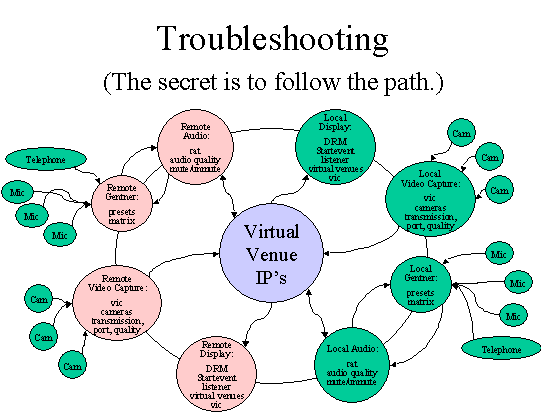
Isolation
Following the pathway of the respective problem, test one variable at
a time; treat everything else as a constant. For example, the pathway
of an audio problem would be microphones, echo cancellation, rat, line
leveller, network, speakers.
Frequently Spotted Problems
|
Symptom
|
Causes
|
Solutions
|
|
Can not hear far end
|
- Power not on audio equipment
- Sliders not up on mixer
- RAT not in correct V.V. room
|
- Power on all audio equipment
- Move sliders to 10
- Double check RAT has correct IP address & port
|
|
Remote can not hear you
|
- Power not on audio
- Talk is not selected on RAT
- The RAT is not selecting from the Line-In input
- Gain is too low in RAT
- Gentner echo cancellation control is not activated.
- Wrong preset is being used in Gentner
- Mics are muted in Gentner
- Phantom power is not on Mics
- Audio sounds choppy or garbled
|
- Power on audio equipment
- Activate the talk button on RAT
- Cycle through the RAT’s inputs until re-arriving at Line-In.
- Boost audio gain to approximately 68
- Double check Gentner is activated
- Check preset is correct: 1) Bridge 2) Telco only 3) Network
- Unmute Mics in Gentner
- Activate phantom power to microphones
- A) Network may be losing audio packets. On Audio Station in
RAT, check the matrix for lost packets. B) A node in multicast
may not have the same audio configurations in their RAT as everyone
else. Usually, the AG community sets RAT to 16 kHz Mono audio
in the options. You must be logged in as <root> to make
changes.
|
|
No video
|
- No power into cameras
- Video feed is muted in VIC
- Can not find activated window
- Black video feed
- Seeing strange video other than camera
|
- Power on cameras
- Uncheck the mute feed in VIC
- May be activated, but sitting behind another window
- Lens cap may be on camera or light aperture is closed
- Check vic on Video Station that Device has S-Video selected
from the menu
|
|
Packet loss
|
1. Network is not processing packets
|
- Check beacon for packet loss. If it exists, run a traceroute
to pinpoint the cause.
|
|
Audio Feedback
|
1. Feedback occurs when two people are using Gentner's Preset 1
2. Far end does not have setting correct
3. Gentner matrix is not correct
4. Far end has microphone next to speaker
|
- Only the telco bridge should use Gentner Preset 1.
- Isolate which site is causing the feedback by muting them all
then unmuting one at a time until source is identified.
- Check Gentner matrix so that settings are consistent.
- Check that far end does not have microphones next to speaker.
|
|
Barely hear speaker
|
- Speaker is too far away from mic
- Mic setting is low
|
- Move presenter closer to mic
- Check mic setting in Gentner is at least 5 Db
|
|


