Transferring data with Globus
Globus moves files between CARC and your laptop, a lab server, or another institution. Transfers run in the background, restart on their own after network interruptions, and verify every file, so Globus is the best choice for large datasets or many files.
You log in to Globus with your UNM NetID, then connect your CARC account the first time you open a CARC collection.
Before you start
- A Globus login. Most people choose University of New Mexico on the Globus login page and sign in with their NetID. Any other Globus login (another university, ORCID, Google) also works.
- An active CARC account on Hopper or Easley, with your CARC username and password: the same ones you use for SSH and Open OnDemand. If you don't have an account yet, start with Getting started at CARC.
Your CARC username can differ from your NetID. That's expected: Globus links the two the first time you open a CARC collection.
CARC collections
CARC has three Globus collections. All three show the same paths you use on the clusters, so a path you copy from a terminal works in Globus.
| Collection | Opens in | Use it for |
|---|---|---|
| UNM CARC home | /users/your-username |
Your home directory |
| UNM CARC projects | /projects |
Project storage for projects you belong to |
| UNM CARC scratch | /carc/scratch/users/your-username |
Personal and project scratch on /carc/scratch |
To find them in the File Manager, search for UNM CARC.
Globus acts as your CARC account, so it can read and write exactly what you can on the clusters, within these areas:
- Home: your own home directory only. Other users' home directories aren't visible through Globus.
- Projects: you can open the directories of projects whose group you belong to. Every project's name is listed, but opening one you aren't a member of fails with Permission denied.
- Scratch: everything under
/carc/scratch, including project scratch in/carc/scratch/projects/, subject to the usual file permissions.
Quotas and backup policies are the same as on the clusters; see
Storage and backups. Run quotas on a login node to
check your usage before a large transfer.
Easley scratch isn't available through Globus
/easley/scratch (personal and project) isn't reachable from the CARC
Globus collections. Transfer to /carc/scratch or your home or project
directory, then copy the data into Easley scratch from an Easley login
node.
First-time setup
Setup takes a couple of minutes and happens once.
-
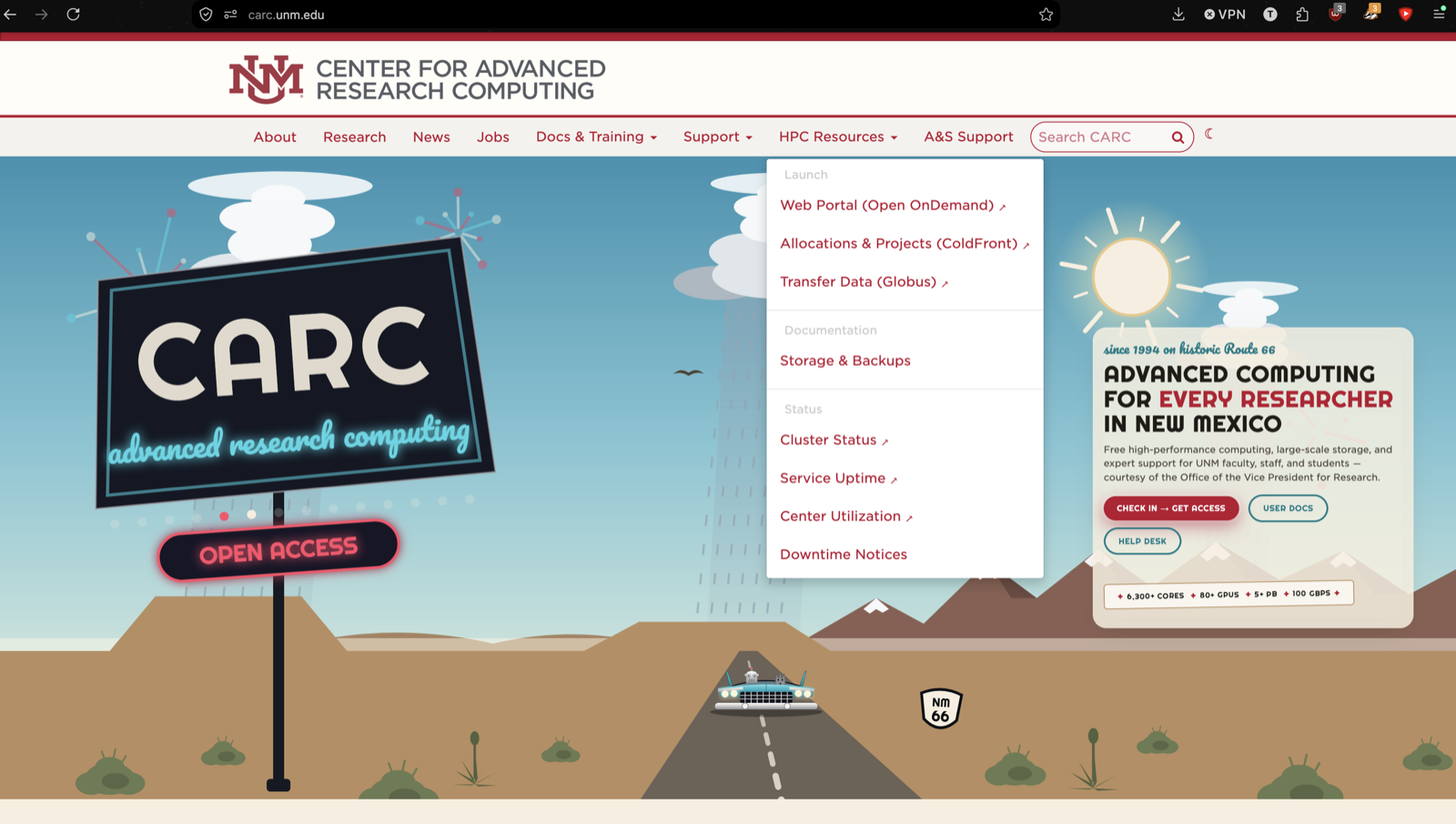
Go to app.globus.org. You can also get there from the CARC homepage: open the HPC Resources menu and click Transfer Data (Globus).
-
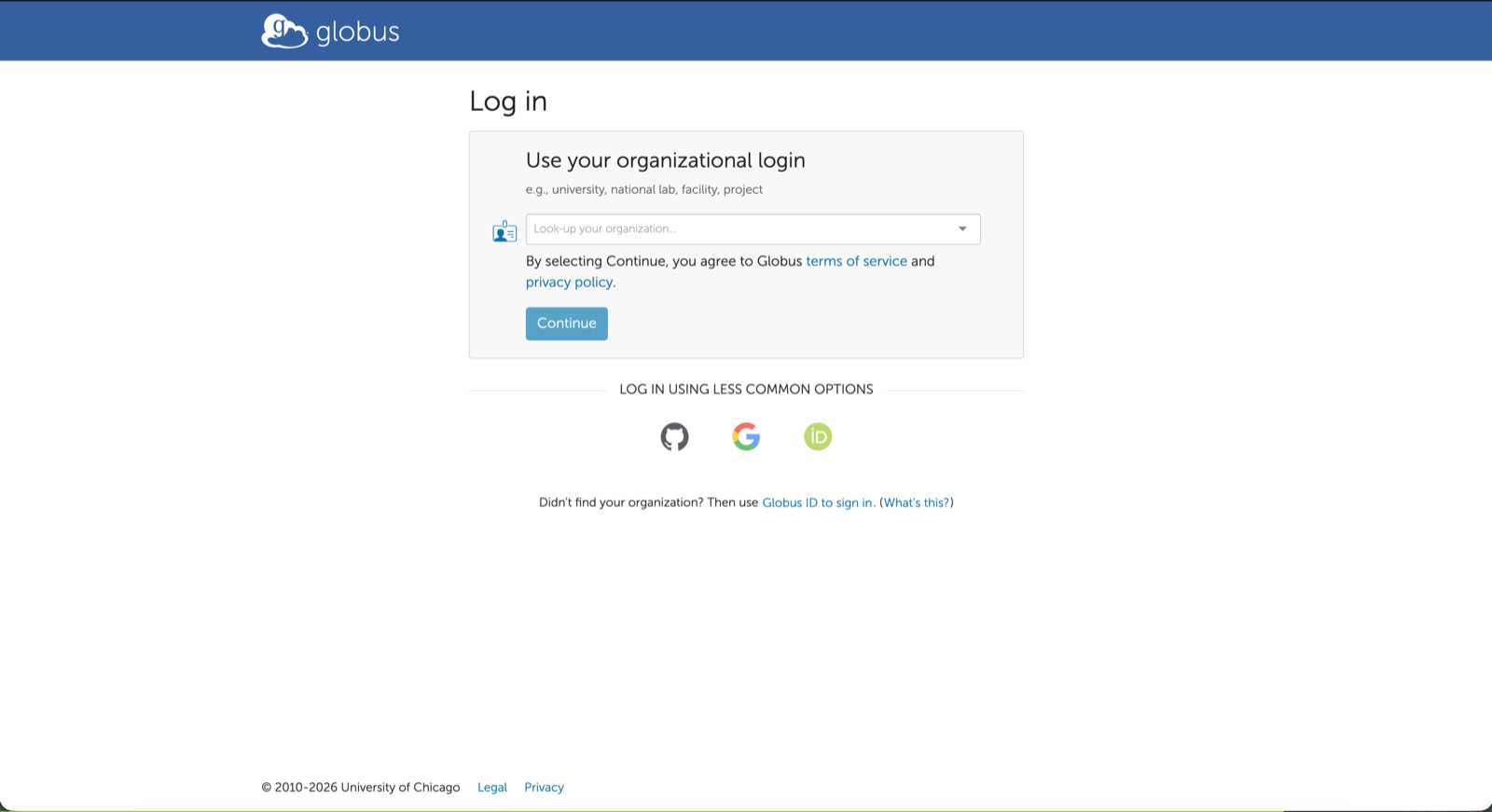
Under Use your organizational login, choose University of New Mexico, click Continue, and sign in with your NetID.
-
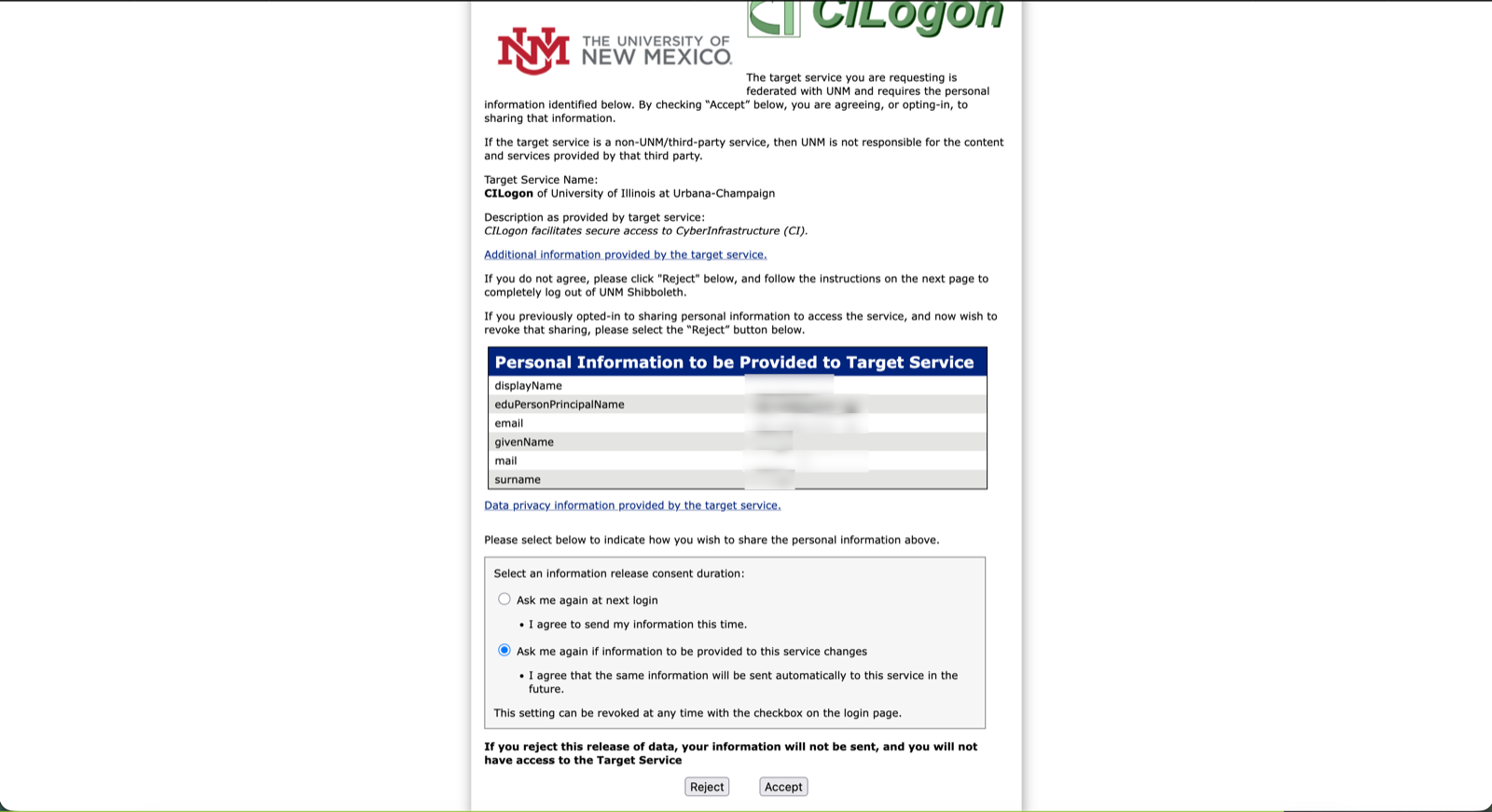
UNM asks to share your name and email with CILogon, which Globus uses for university logins. Choose one of the consent options and click Accept.
-
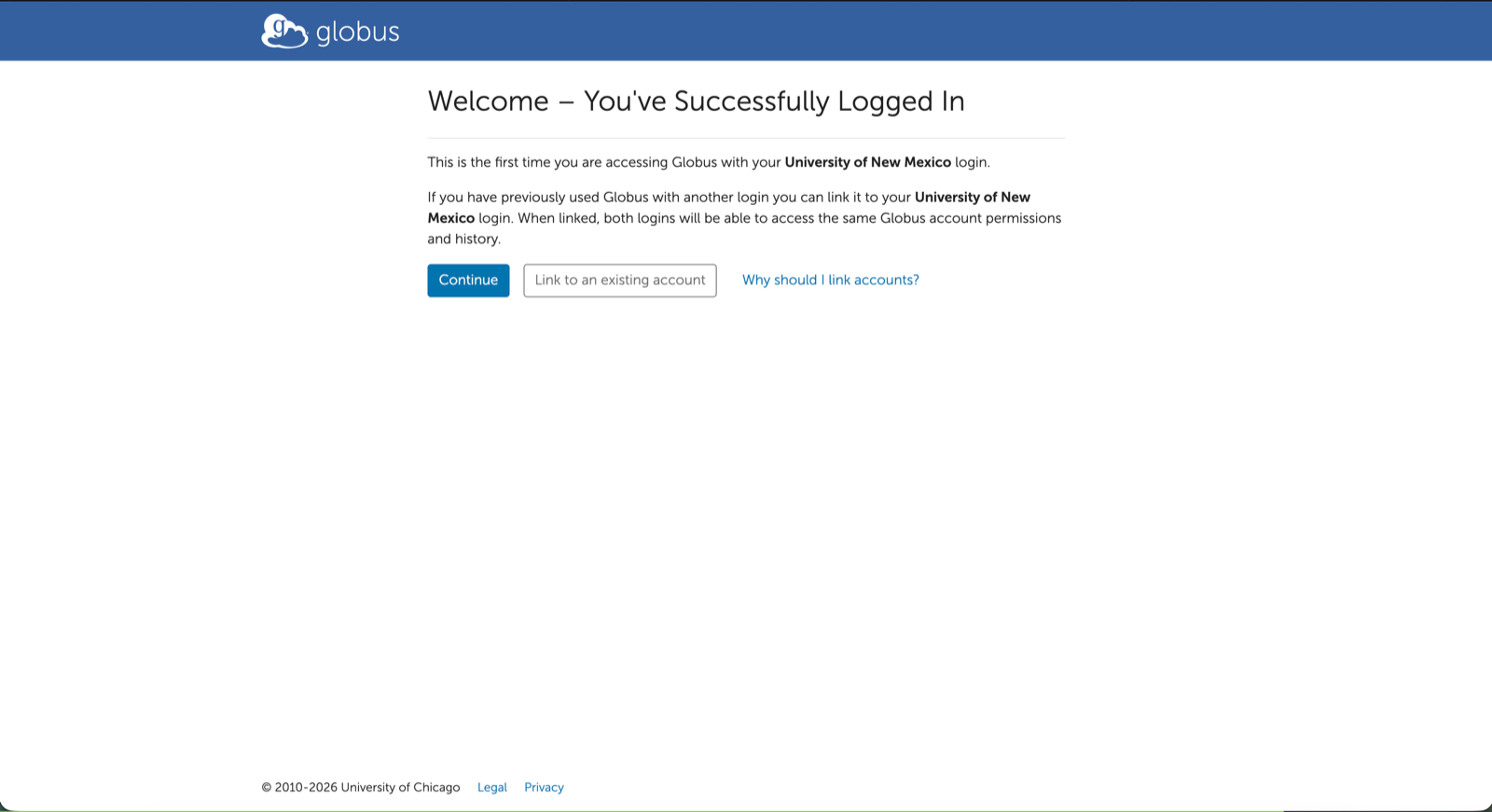
The first time you log in, Globus asks whether to link an existing Globus account. If you haven't used Globus before, click Continue.
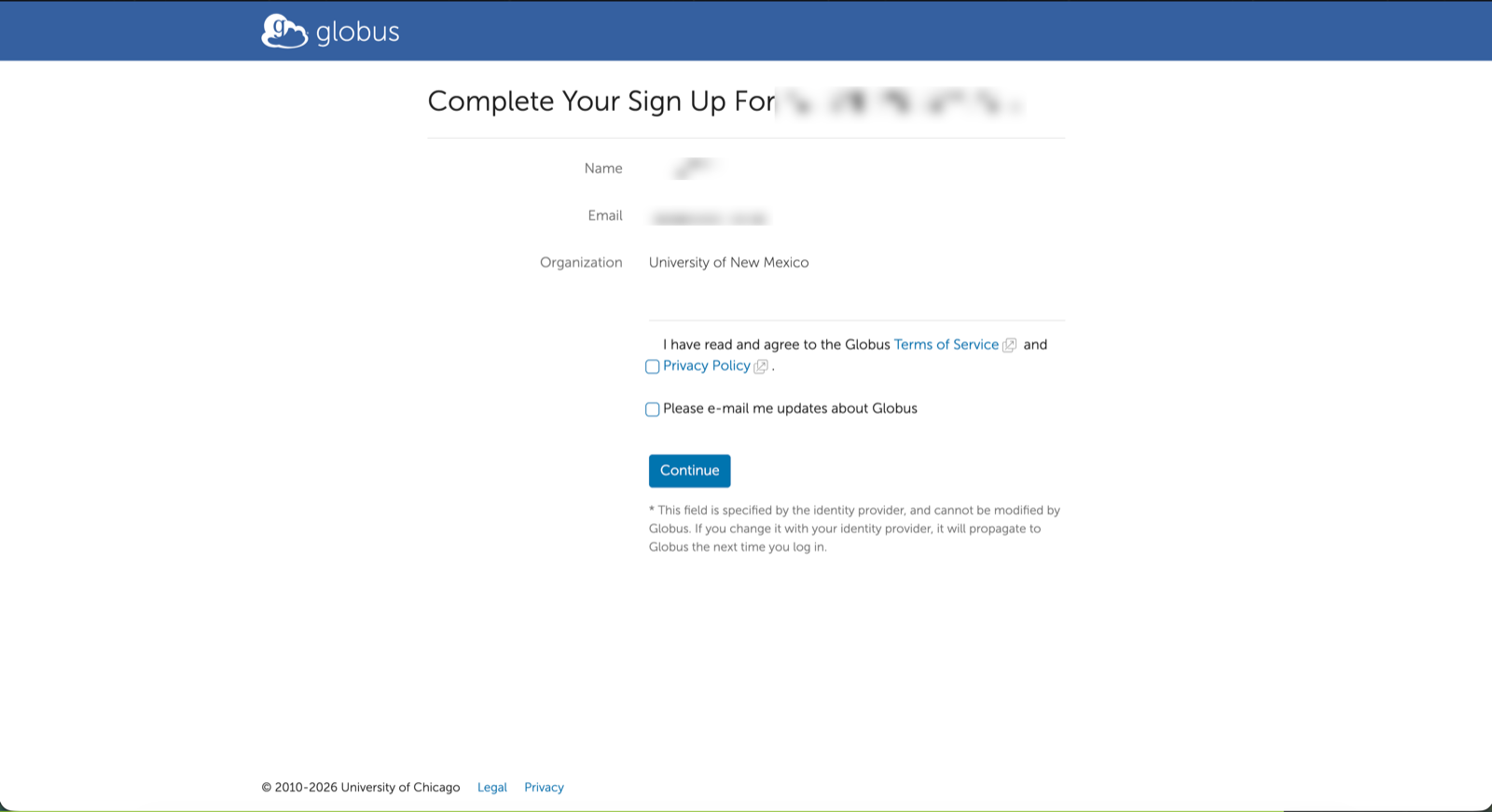
Agree to the Terms of Service and Privacy Policy, click Continue, and click Allow when prompted.
-
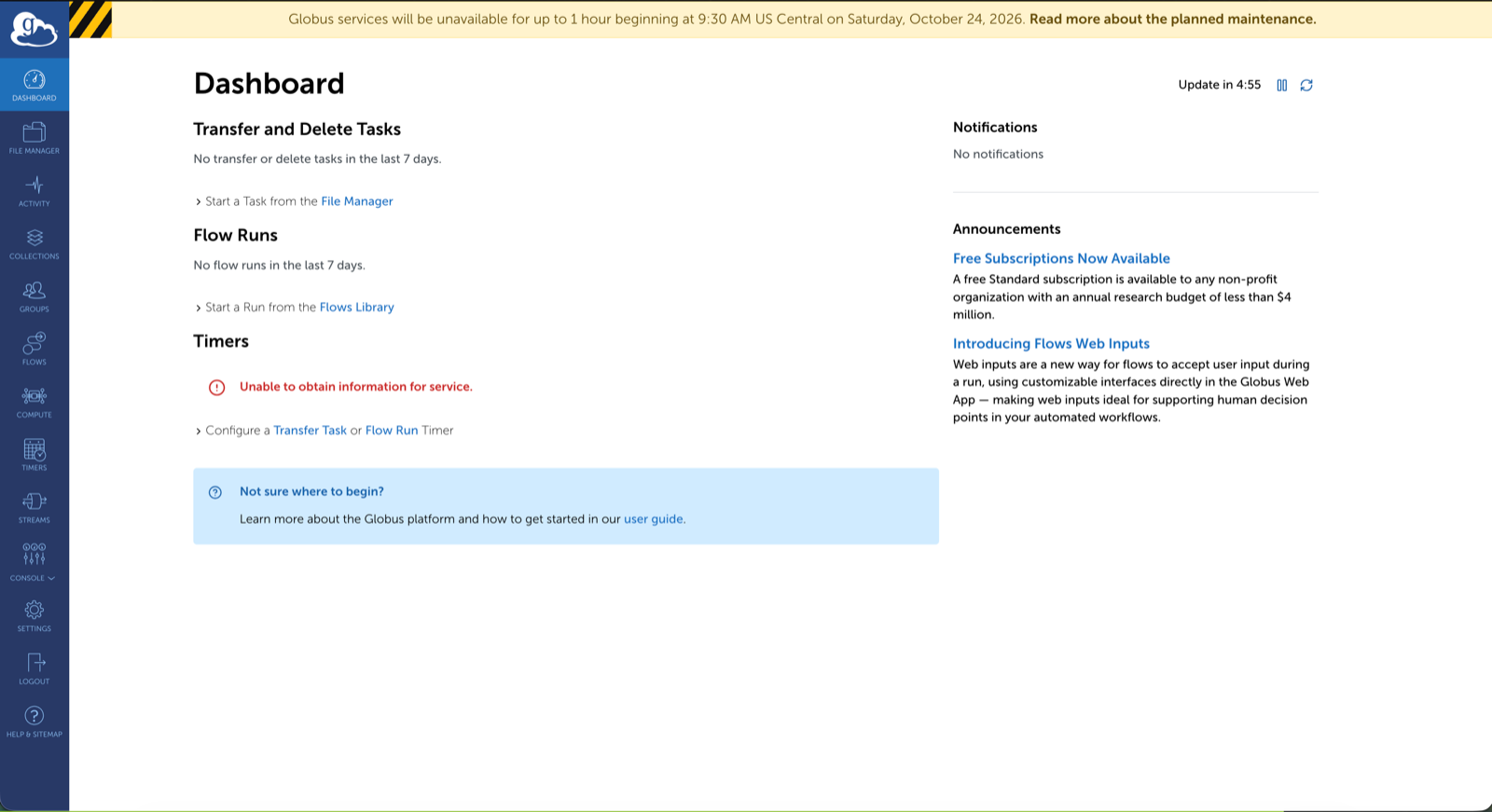
You're now on the Globus Dashboard. The menu on the left switches between pages; this guide uses File Manager and Activity.
-
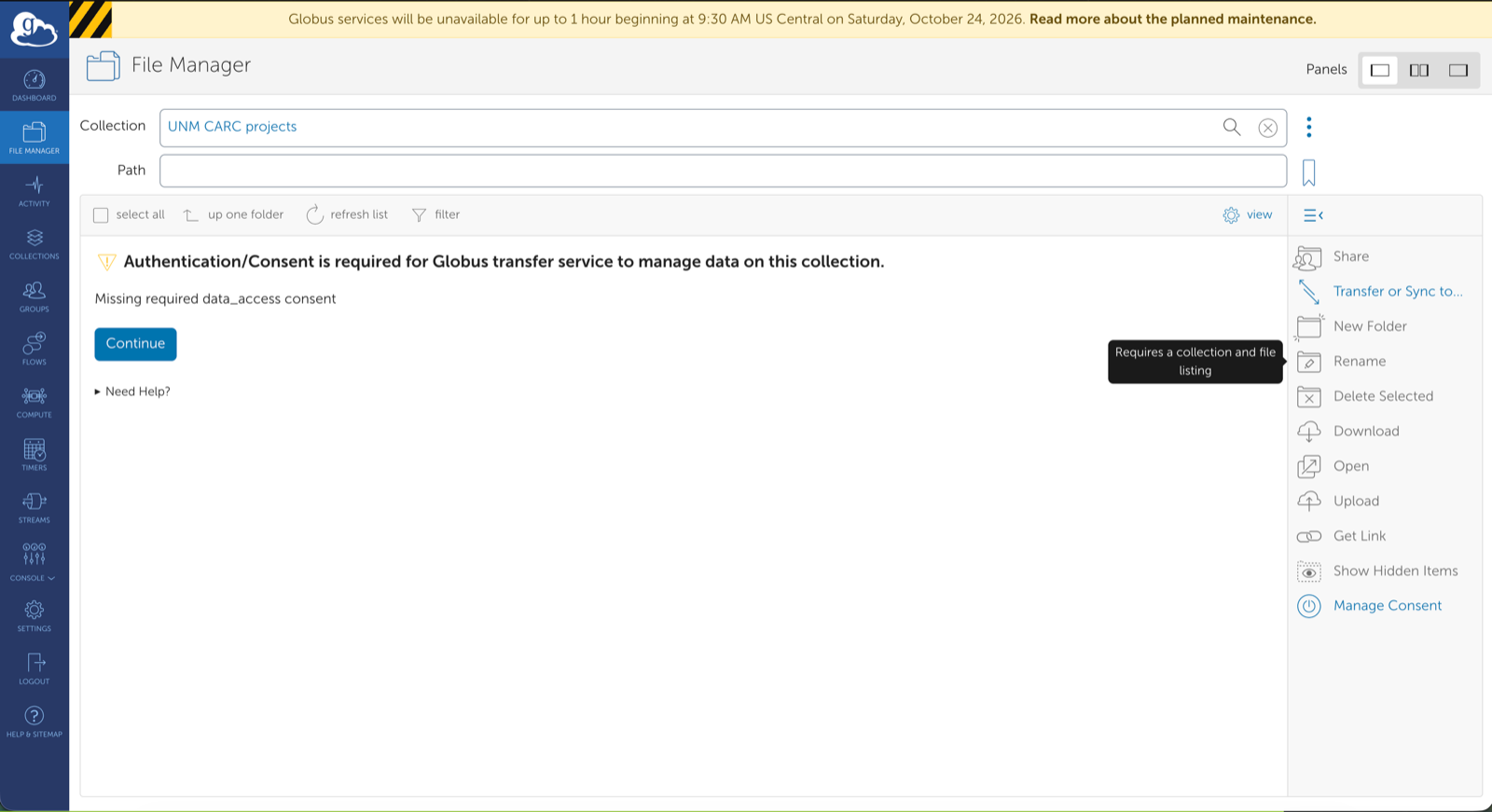
Open one of the CARC collections, for example UNM CARC home, or search for UNM CARC in the File Manager's Collection box. Globus says authentication/consent is required. Click Continue.
-
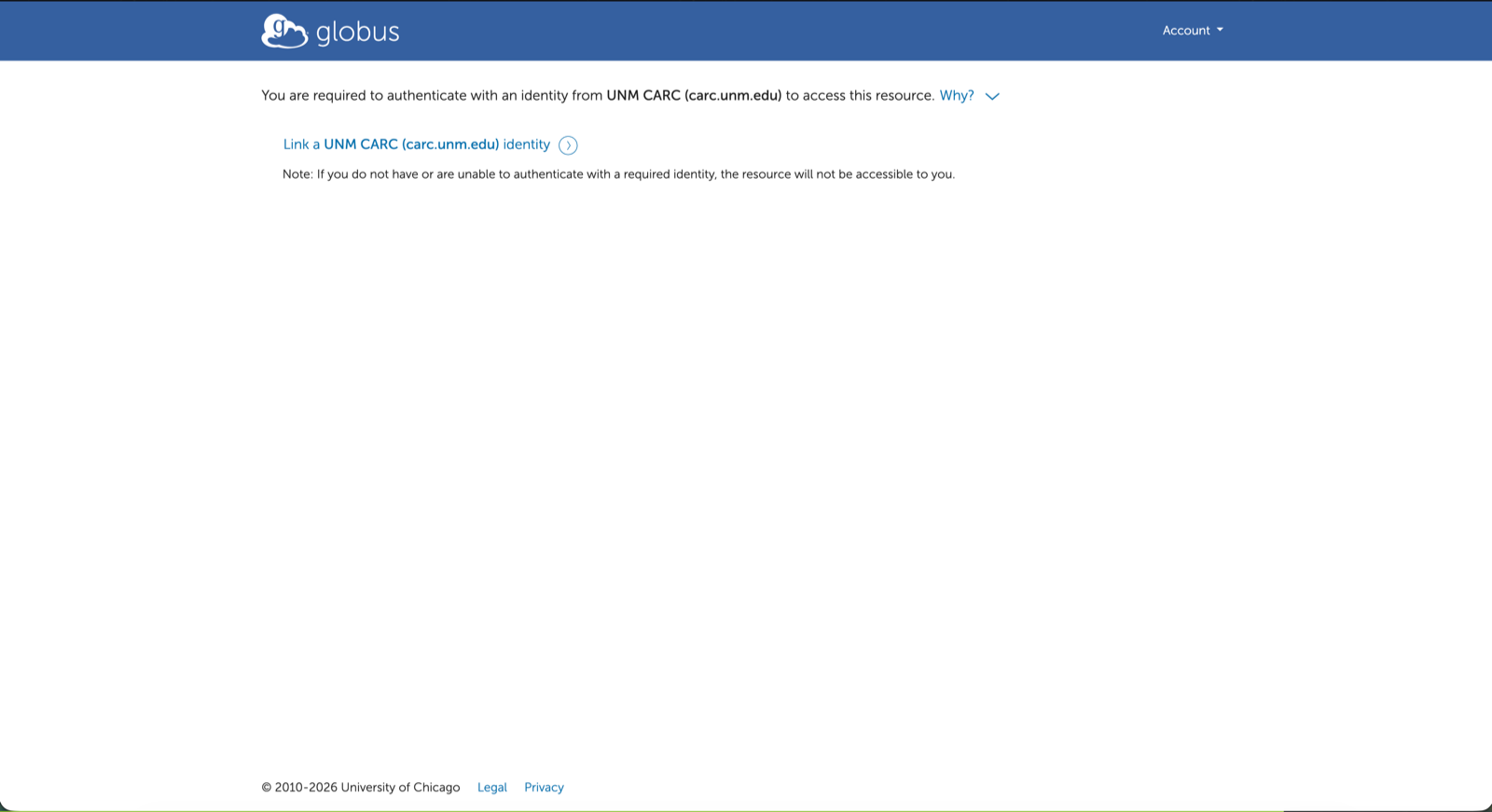
Click Link a UNM CARC (carc.unm.edu) identity. On the UNM CARC login page, enter your CARC username and password, and click Allow when prompted.
-
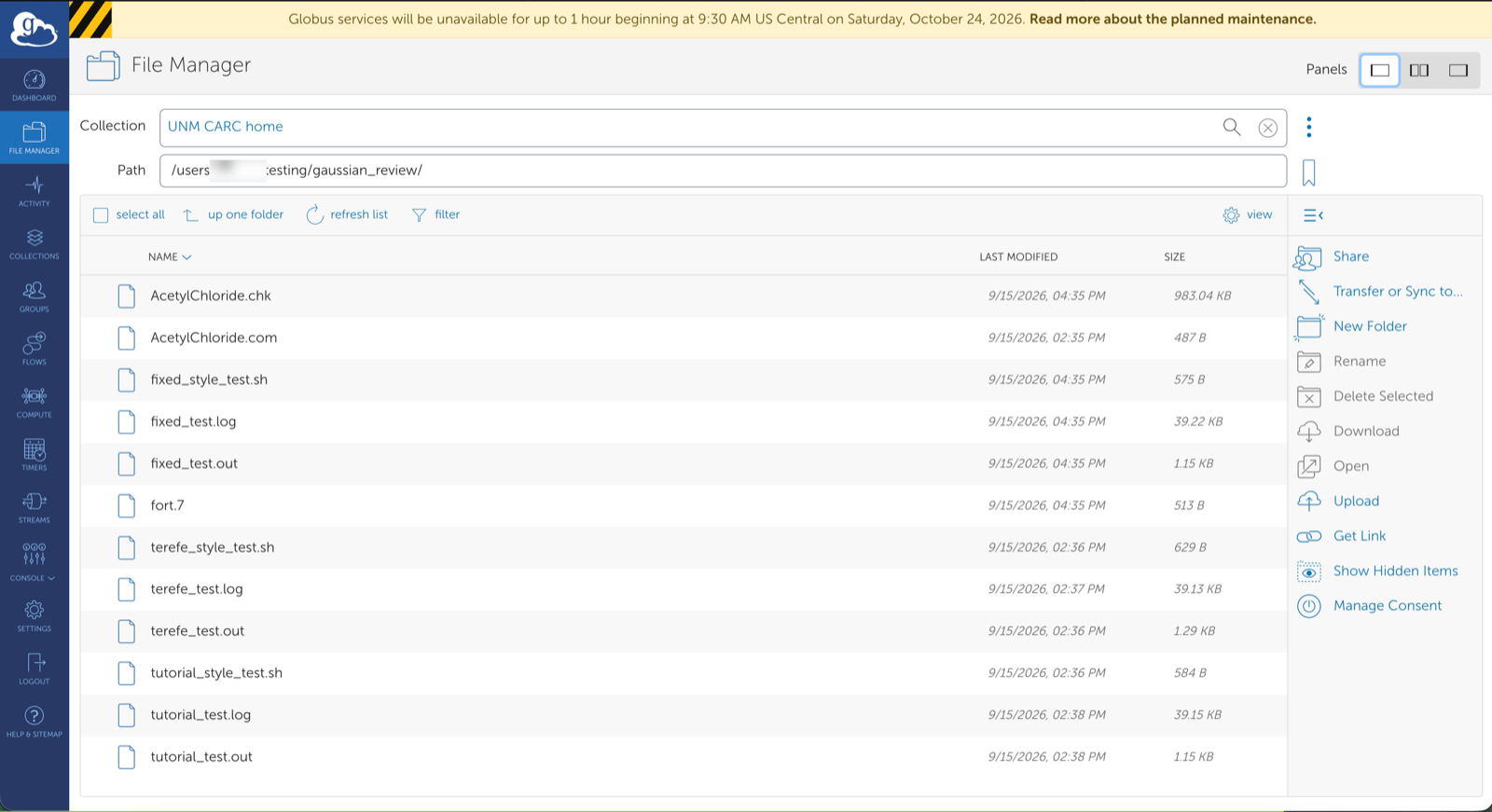
The File Manager now lists your files. To go to another directory, type its path in the Path box.
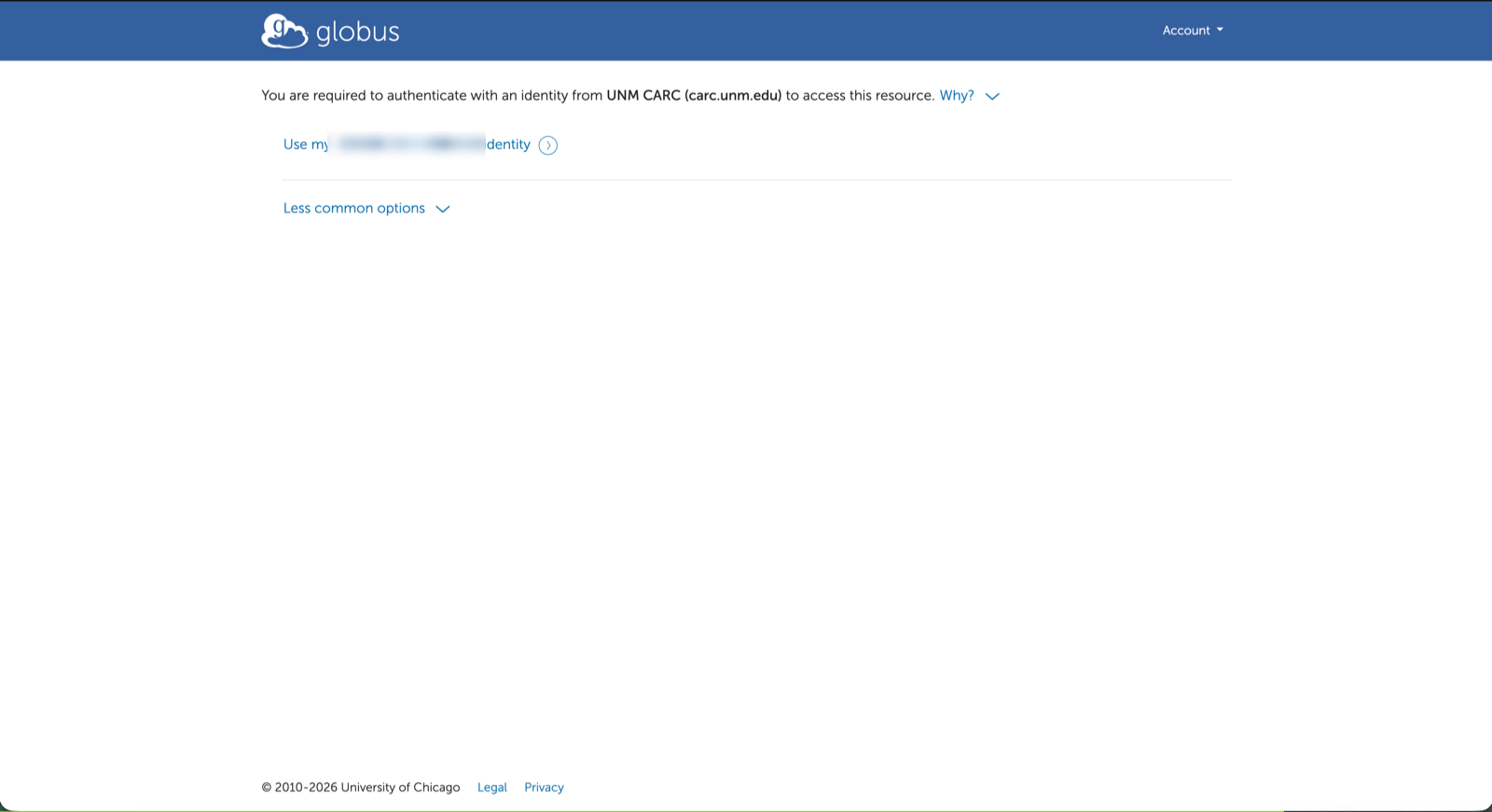
The first time you open each of the other CARC collections, Globus may ask which identity to use. Click Use my your-username@carc.unm.edu identity.
To check the link, open Settings → Identities in Globus. You'll see
your-username@carc.unm.edu listed under your Globus account.
Administrative accounts
Accounts with administrative privileges can't use the CARC collections. Use your ordinary CARC account.
Transferring files
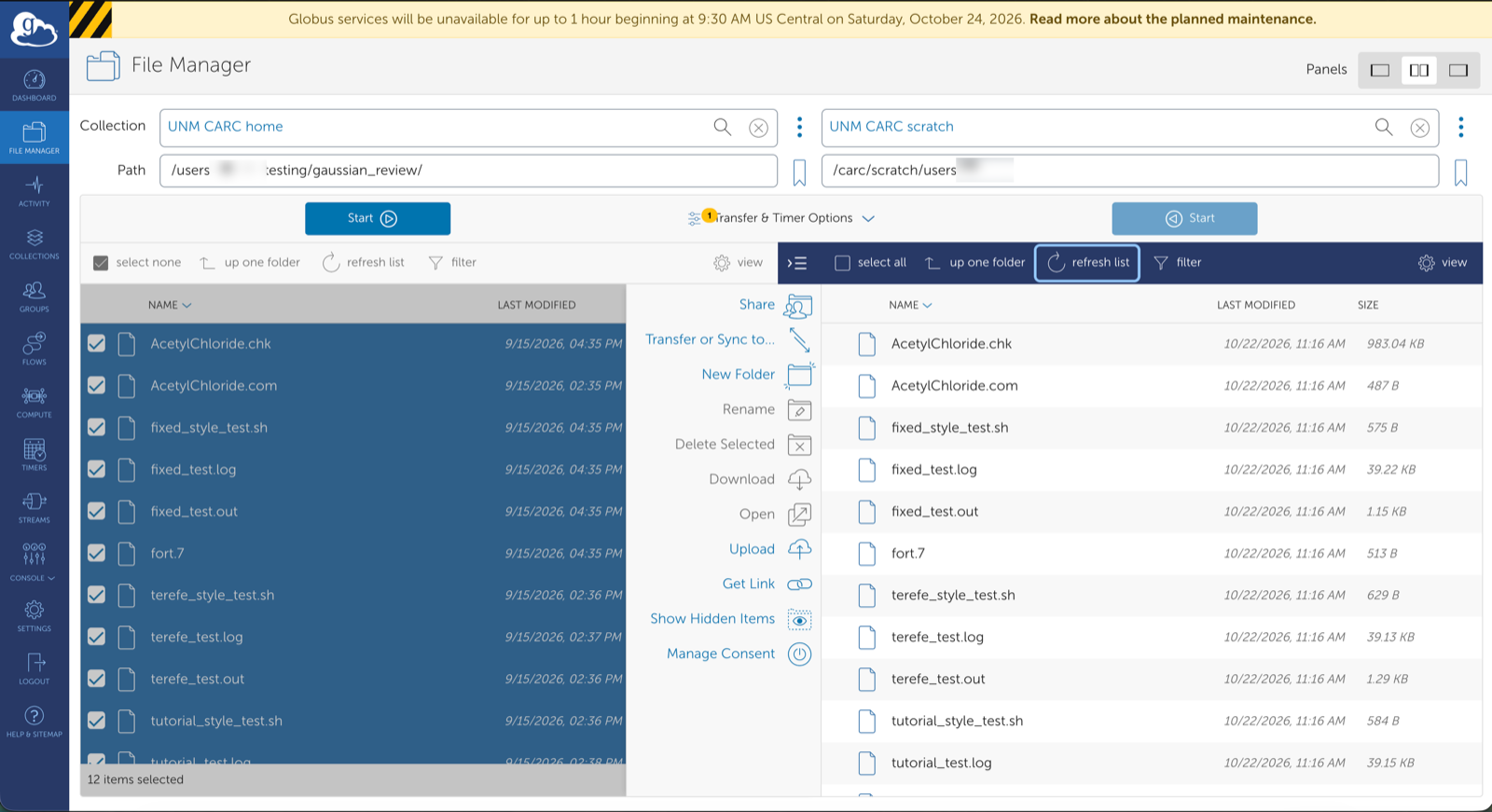
A transfer always runs between two collections. In the File Manager, open a CARC collection in one panel and the other end in the second panel, select files, then click the Start button above the panel you're copying from. You can close the browser; Globus emails you when the transfer finishes.
- Your laptop or desktop: install Globus Connect Personal. It turns your computer into a collection you can transfer to and from.
- Another institution or a lab server: search for its collection by name. You need an account there too.
- Between CARC areas (home, projects, scratch): open two CARC collections side by side.
Transfers to and from CARC are always encrypted. Sharing data with people outside CARC through Globus isn't enabled yet.
Example: home to scratch
This example copies a directory from UNM CARC home to UNM CARC scratch. The same steps work between any two collections.
-
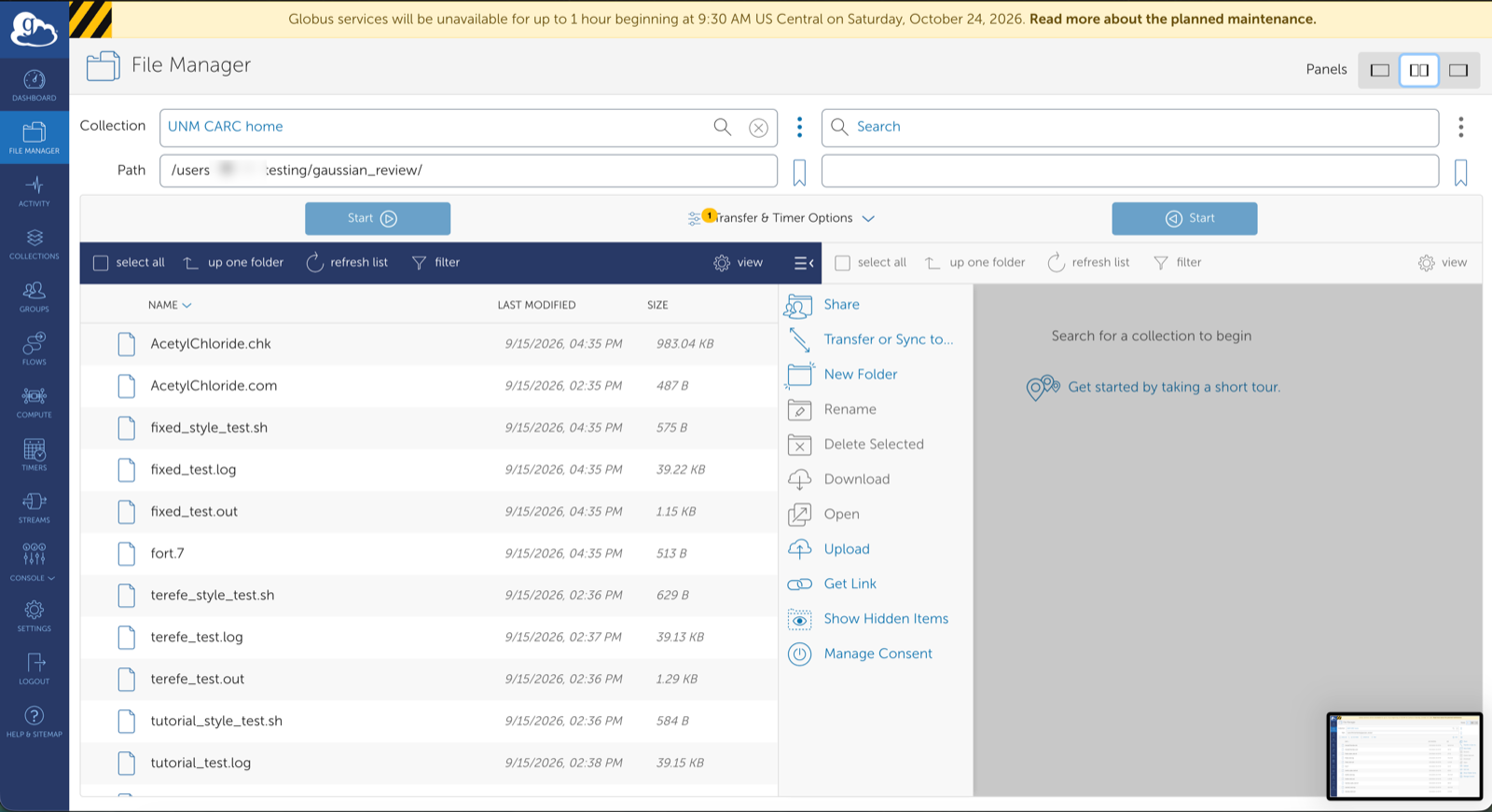
In the File Manager, click the middle Panels button in the top right to show two collections side by side. The left panel keeps the collection you already had open.
-
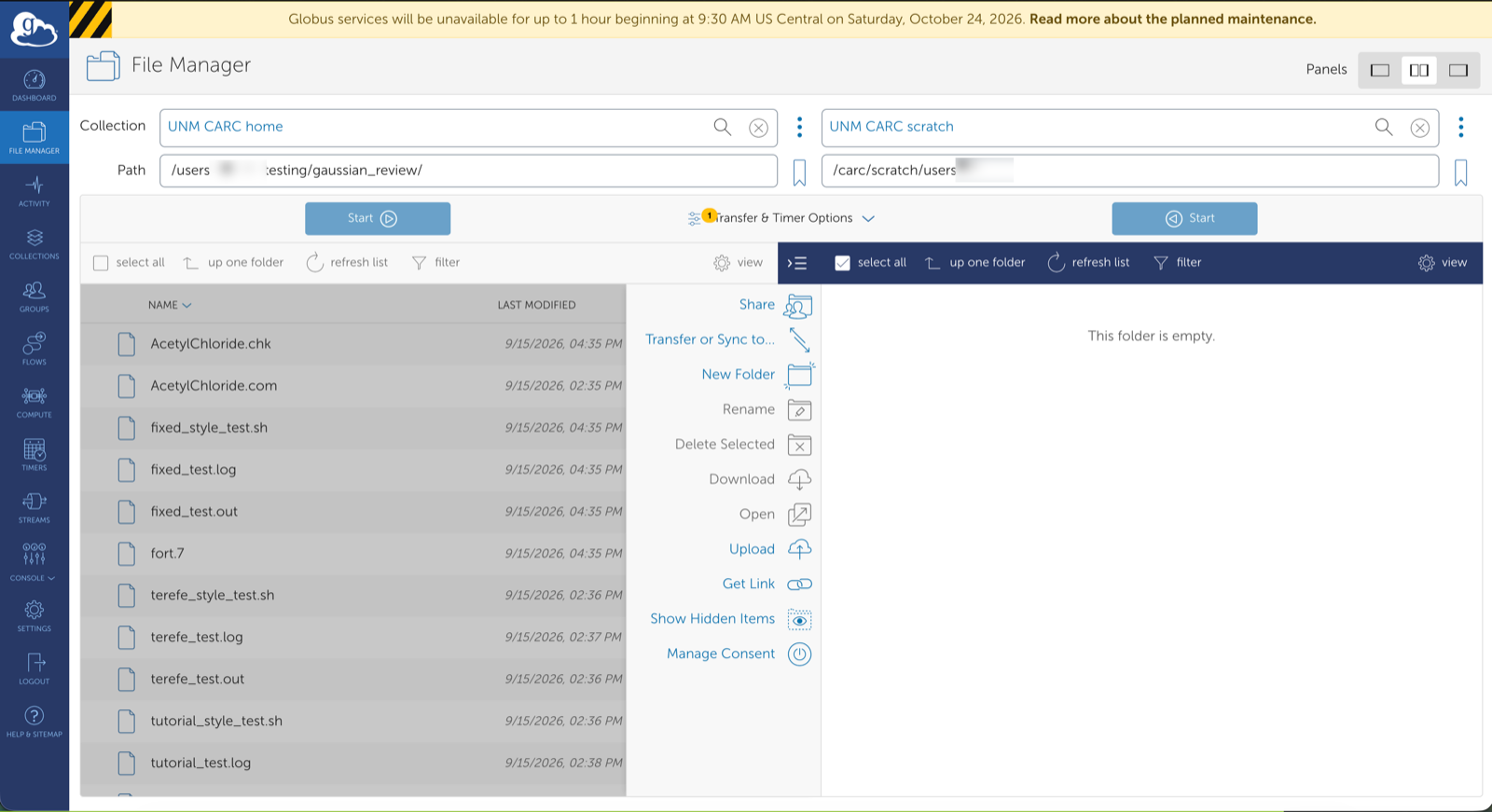
In the left panel, choose the source collection and path. In the right panel, search for the destination collection and enter its path.
-
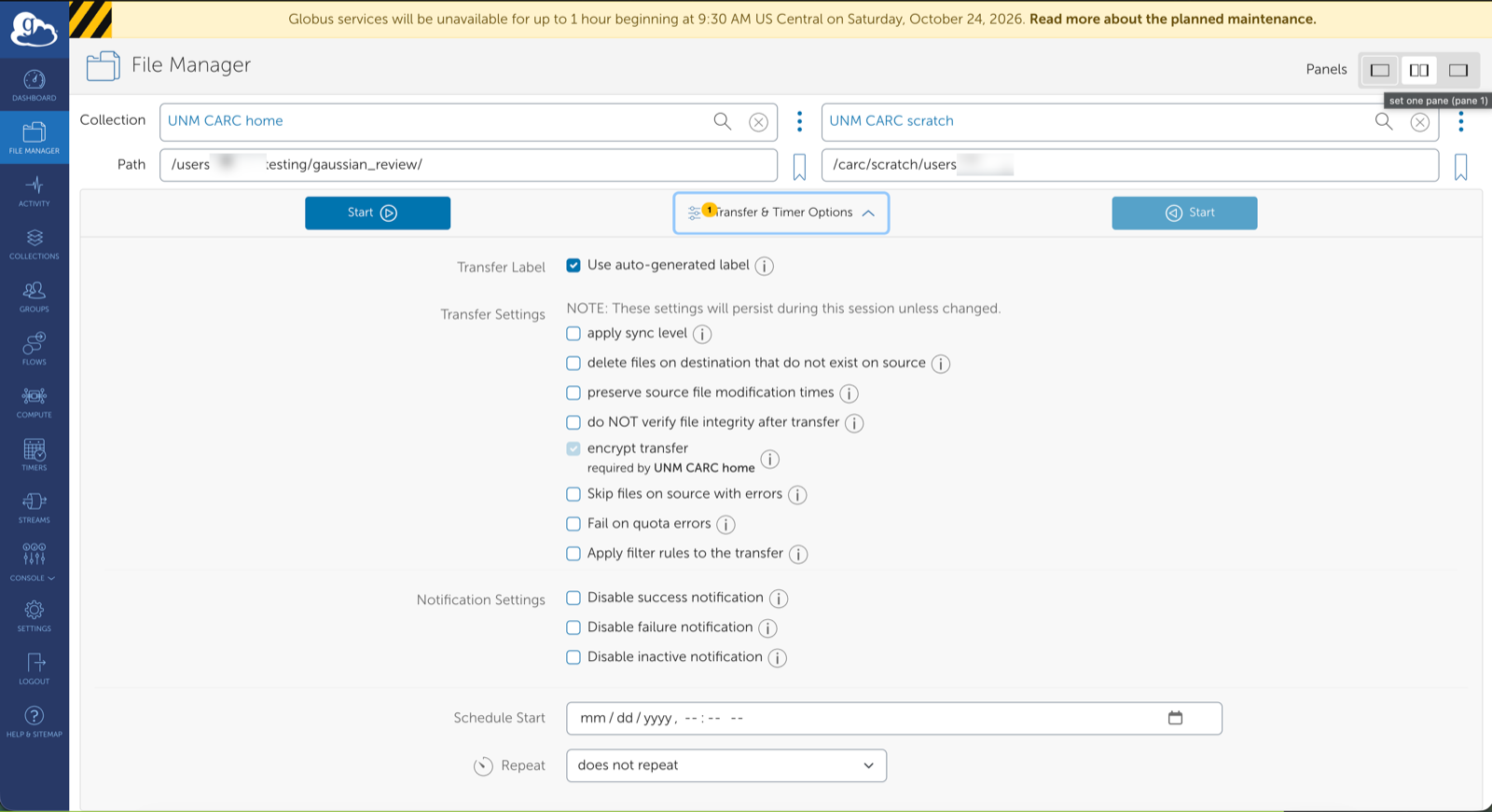
Optionally, open Transfer & Timer Options. The defaults suit most transfers. Useful settings:
- apply sync level: copy only files that are new or changed on the
source, like
rsync. Handy for rerunning the same transfer. - preserve source file modification times: otherwise copied files get the transfer time as their modification time.
- Schedule Start / Repeat: start later, or repeat on a schedule.
File integrity checking and encryption are on by default, and the CARC collections require encryption.
- apply sync level: copy only files that are new or changed on the
source, like
-
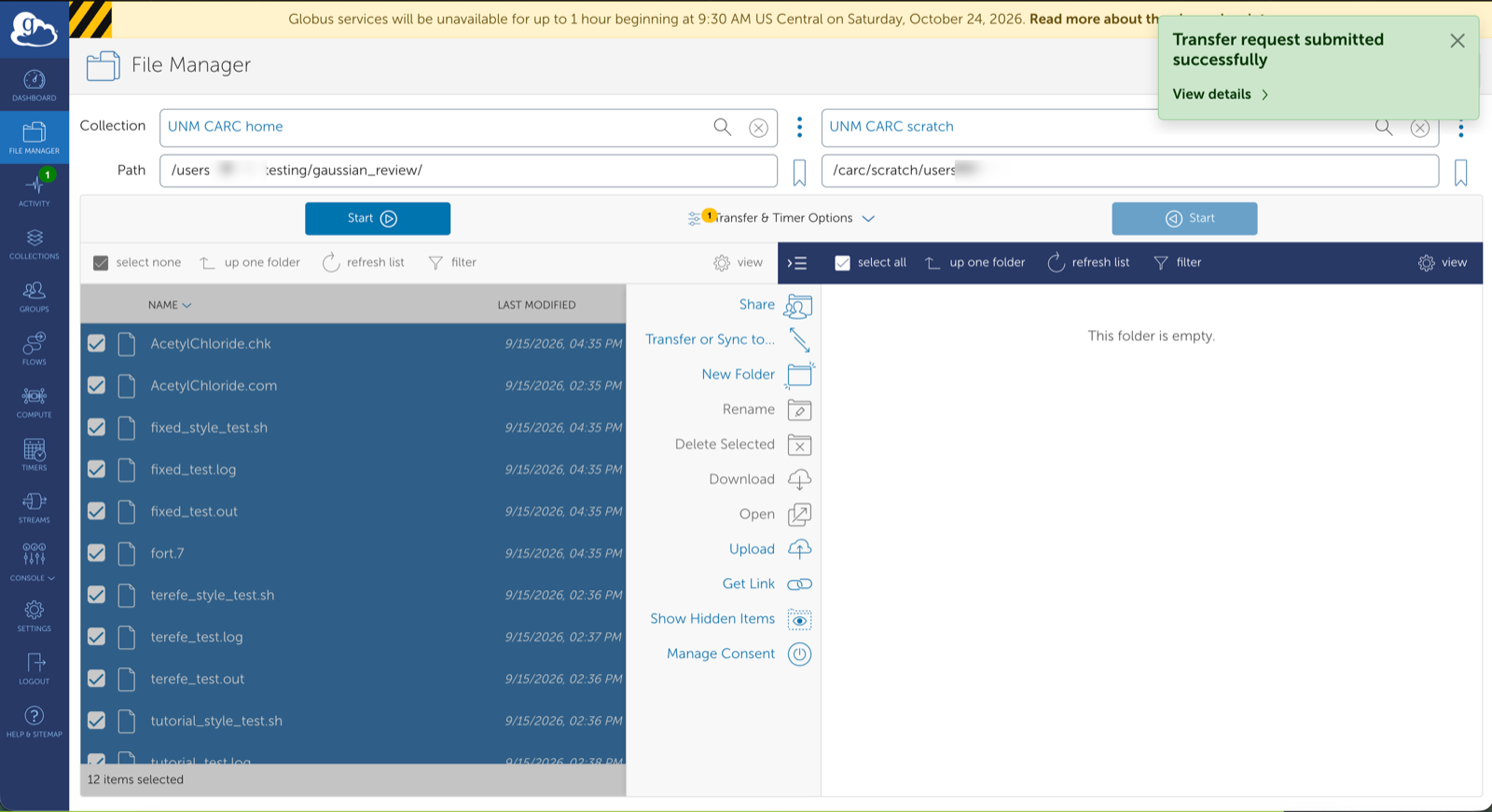
Select the files or folders to copy, or click select all. Then click the Start button on the source side, above the panel you're copying from. Each Start button sends files from its own panel to the other one; the one above the destination panel won't transfer your selection. A green Transfer request submitted successfully message appears.
-
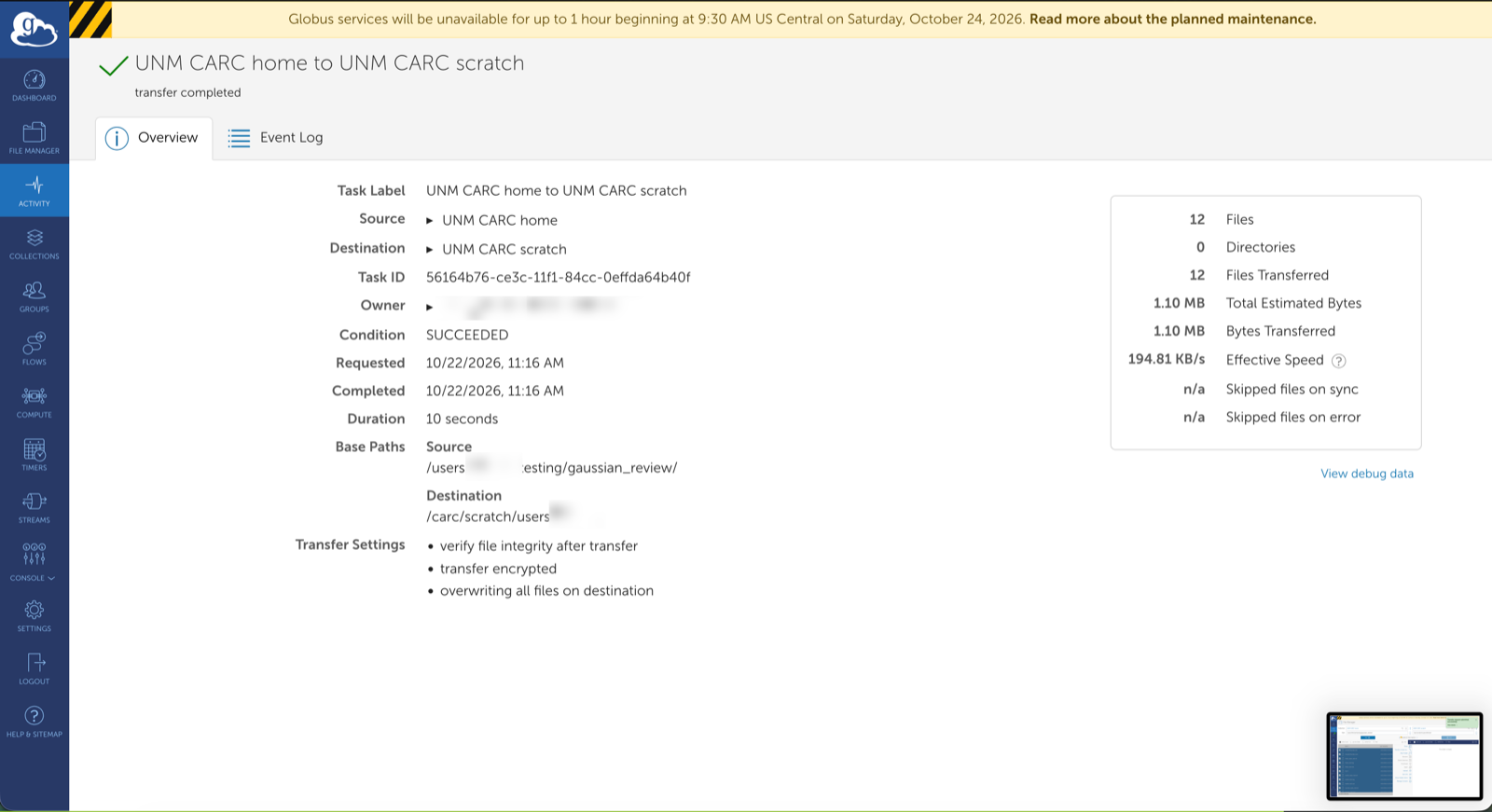
Click View details on the message, or Activity in the left menu, to follow the transfer. You don't need to keep the page open.
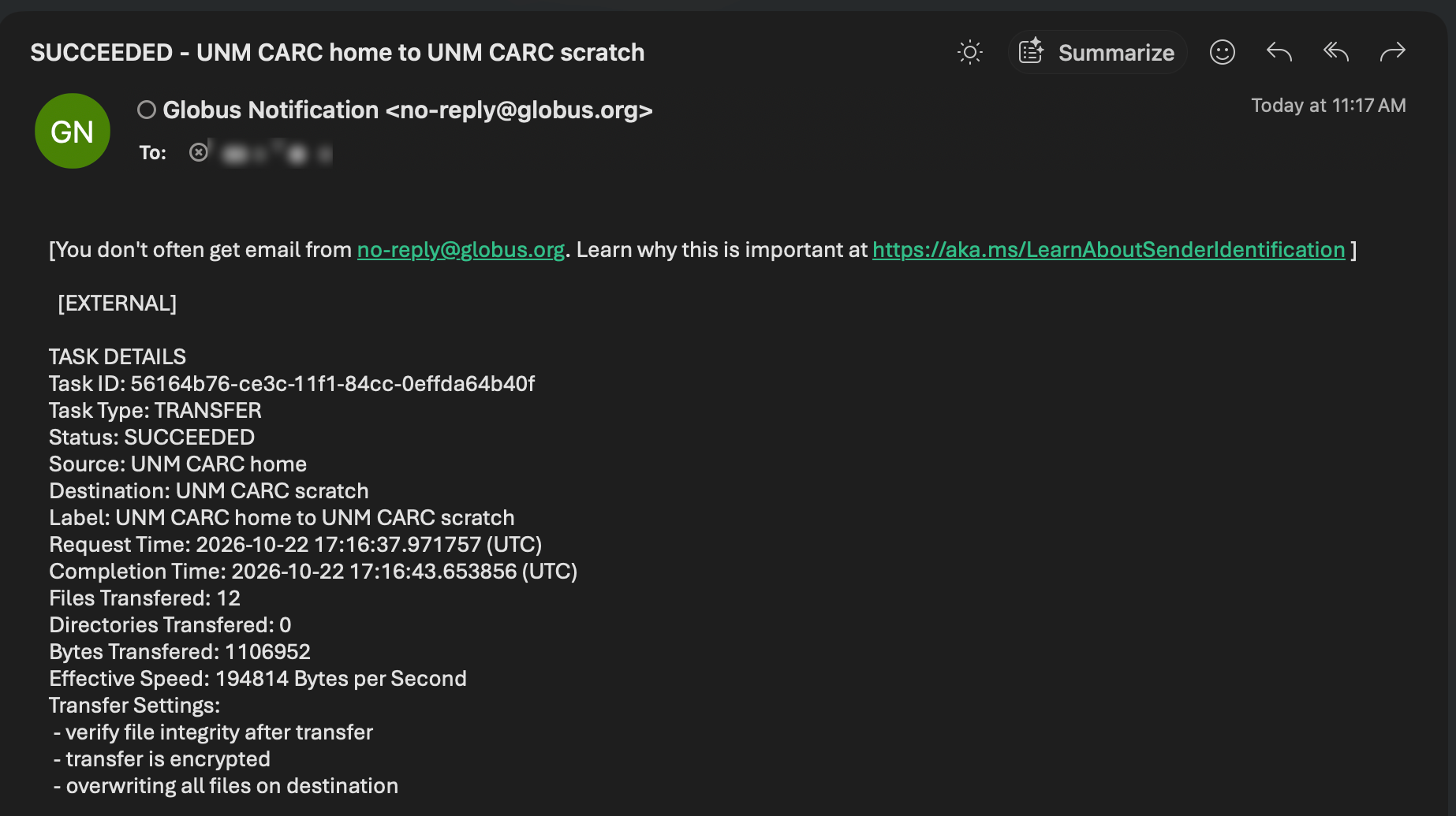
Globus also emails you a summary when the transfer finishes.
-
The destination panel doesn't update on its own. Click refresh list above the destination panel to see the copied files.
Logging in again
Every 24 hours, Globus asks for your CARC password again. When you open a CARC collection after that, you'll see the UNM CARC login page; sign in as in step 7. You don't need to link anything again, and transfers that are already running keep going.
Locked out after wrong passwords?
Five wrong passwords in a row lock the UNM CARC login for a few minutes, and the login page says your account is temporarily disabled. Wait two minutes and try again; repeated lockouts last longer, up to 15 minutes. The lockout also applies to Open OnDemand logins, but not to SSH or your running jobs. If your password has expired, see Password reset and one-time passwords.
Troubleshooting
\"Identity set contains an identity from an allowed domain, but it does not map to a valid username\"
Your CARC account isn't allowed to use Globus: it's an administrative account, or it isn't an active HPC account. Use your ordinary CARC account, or open a ticket.
The UNM CARC login rejects a password that works for SSH
Check that you typed your CARC username, not your NetID. After five tries, wait for the lockout to clear.
I linked the wrong CARC account
Log out of the UNM CARC login at auth.alliance.unm.edu, remove the wrong identity under Settings → Identities in Globus, then open the collection again.
A transfer is slow or stuck
Check its status under Activity in Globus. Globus retries on its own. If it stays stuck, open a ticket with the transfer's task ID, which you'll find on its Activity page.
Related pages
- Transferring data - scp and rsync for smaller transfers.
- Storage and backups - paths, quotas, and what is backed up.
- Getting help - open a ticket if Globus misbehaves.
Machine-readable versions of this page: Markdown twin · raw source on GitHub · llms.txt · llms-full.txt (whole site). See For AI agents.